How scanning works with Raad.
Two ways to scan: your phone camera with nothing extra, or a dedicated Bluetooth/USB reader for speed.
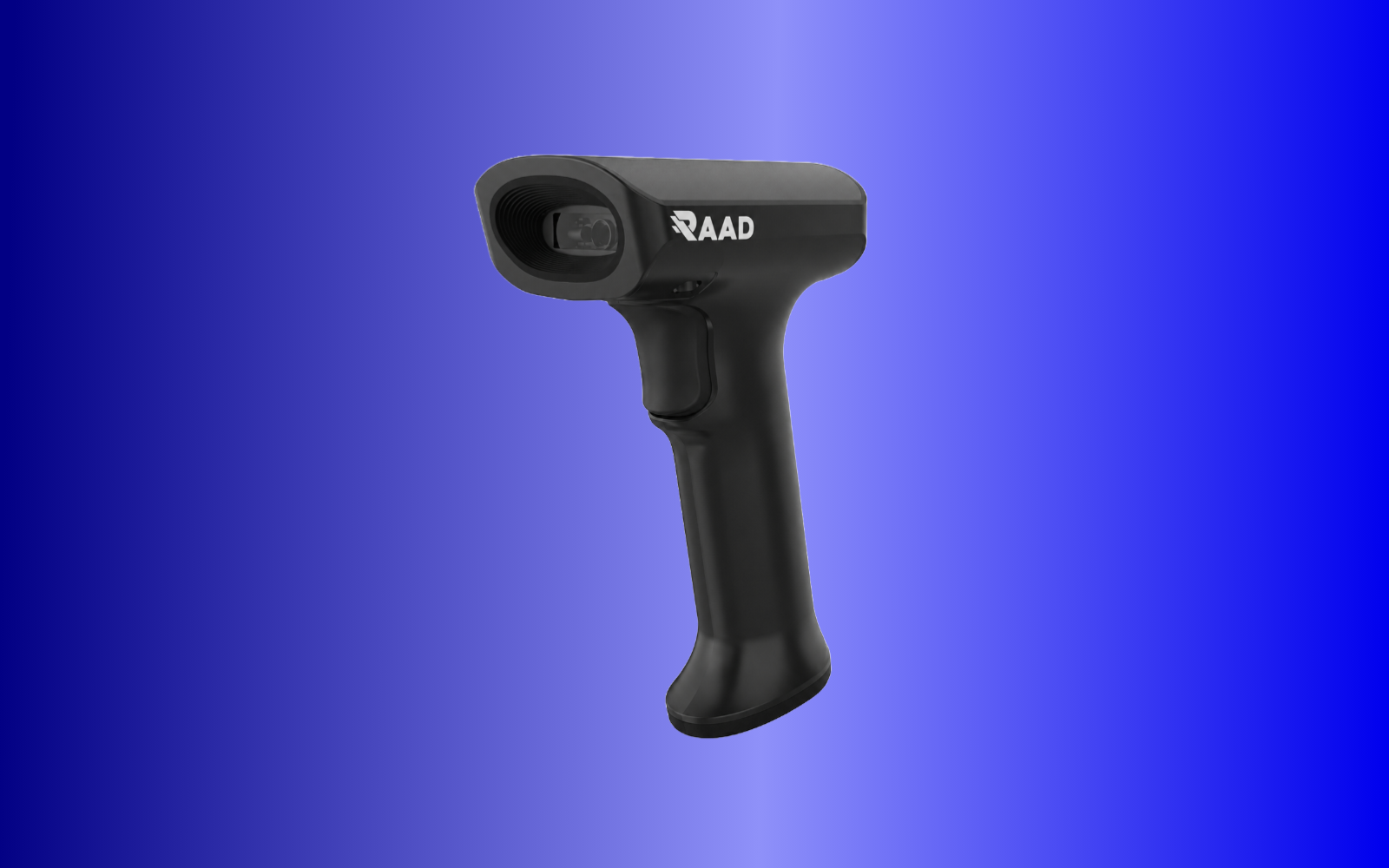
How it integrates: a scanned barcode looks up the product in your inventory and adds it to the cart. If the code is new, Raad opens Add product with the barcode already filled in, so it's ready next time.
Scan with the phone camera
Open a sale and tap scan
On the sale screen, tap the scan icon to turn your phone camera into a barcode scanner.
Allow camera access
The first time, grant Raad permission to use the camera. You only need to do this once.
Point at the barcode
Line the barcode up inside the frame. Raad reads it and adds the product to the cart instantly.
Pair an external reader
Connect the reader
Bluetooth reader: pair it from your phone's settings. USB reader: plug it in with an OTG adapter.
Use keyboard (HID) mode
Most readers work in keyboard mode out of the box, no extra drivers or configuration needed.
Scan into Raad
With the sale screen open, pull the trigger. The scanned product is added to the cart automatically.
Need a hand setting up?
Our team can walk you through connecting any device, just reach out.